Start a video call
About this piece
This user guide accompanied the release of a new video call feature for the Nilquist Customer Help platform. The goal of this guide was for agents (our customer's employees) to be able to set up and join a video call with a customer.You can start video calls with customers while connected in Live Support. This guide will show you how to start and join a call.
For an overview of the Video and Voice application and how to implement it, see Video and Voice for Live Support: Overview.
Set up the video call and invite a user.
Join a Live Support chat to access video calling.
-
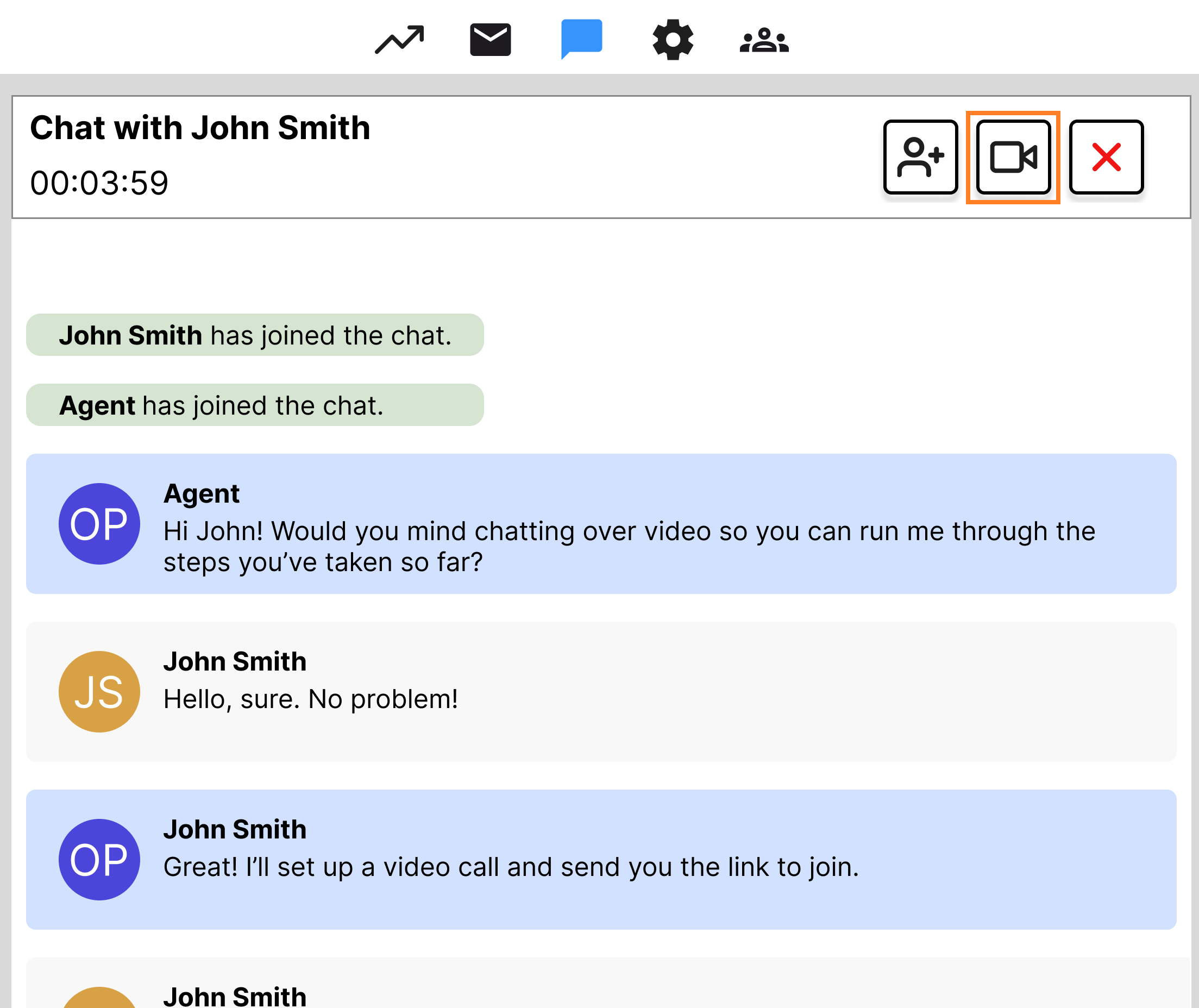
In the Live Support chat page, select the Video call icon.
-
In the pop-up that appears, click Accept to grant the necessary browser permissions.
-
Select Video Setup.
-
Select Start video client. A new tab will open in your browser where you can join the video chat.
-
Select the Copy button to copy the invite link.
-
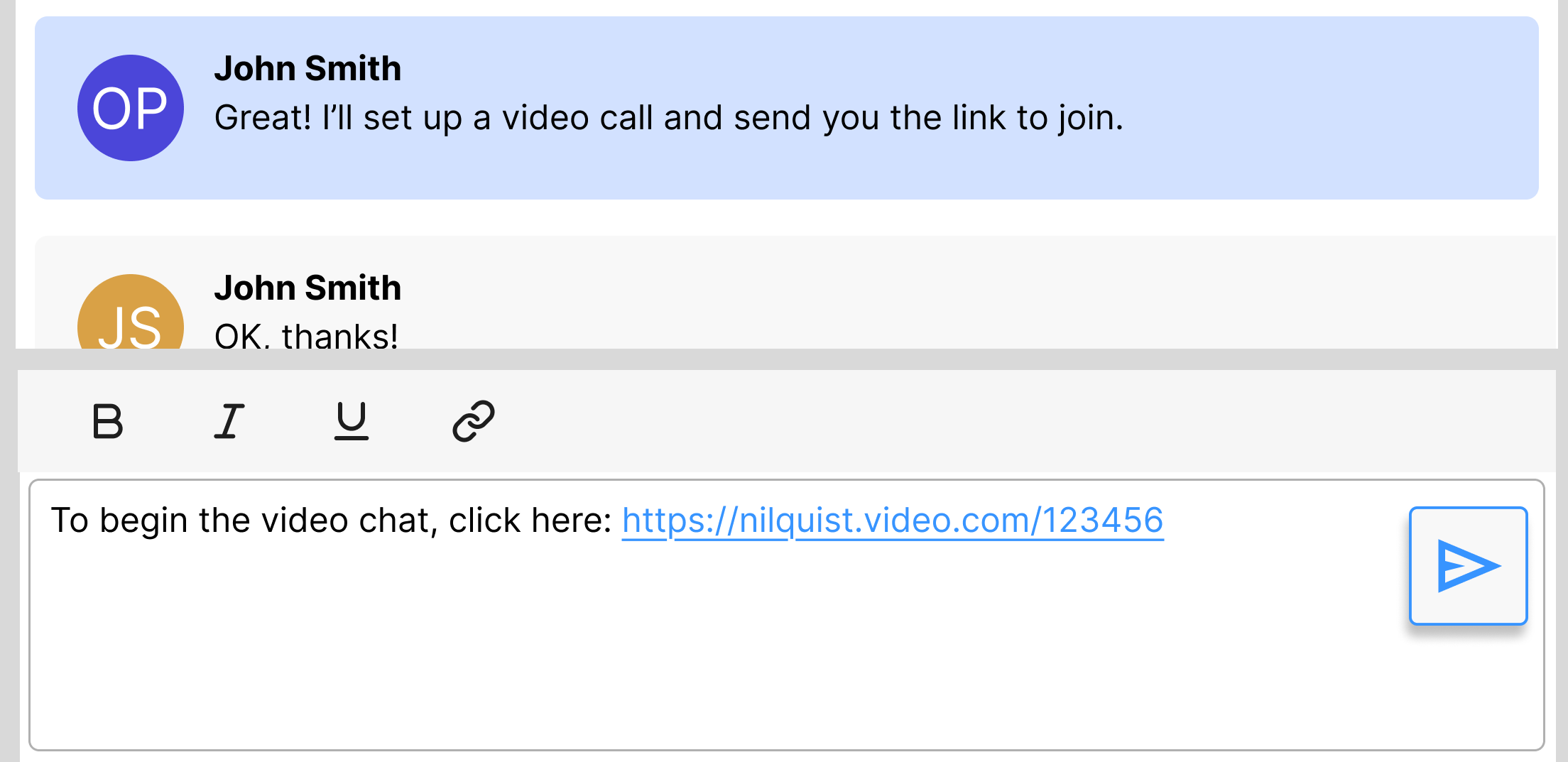
Paste the link into the chat and send it.
Join the call
- After setting up the call and inviting the customer, go to the Video Client page you opened when setting up the call.
- Go to the Vonage Meetings window you opened when setting up the call.
- Enter your name into the Enter your name field.
-
Select Enter Meeting.

- Make sure you’re happy with the settings, and select Join Meeting.